
Databases
SetServer Panel uses MariaDB (or MySQL). Every database has its own user, so a site can only reach its own data.
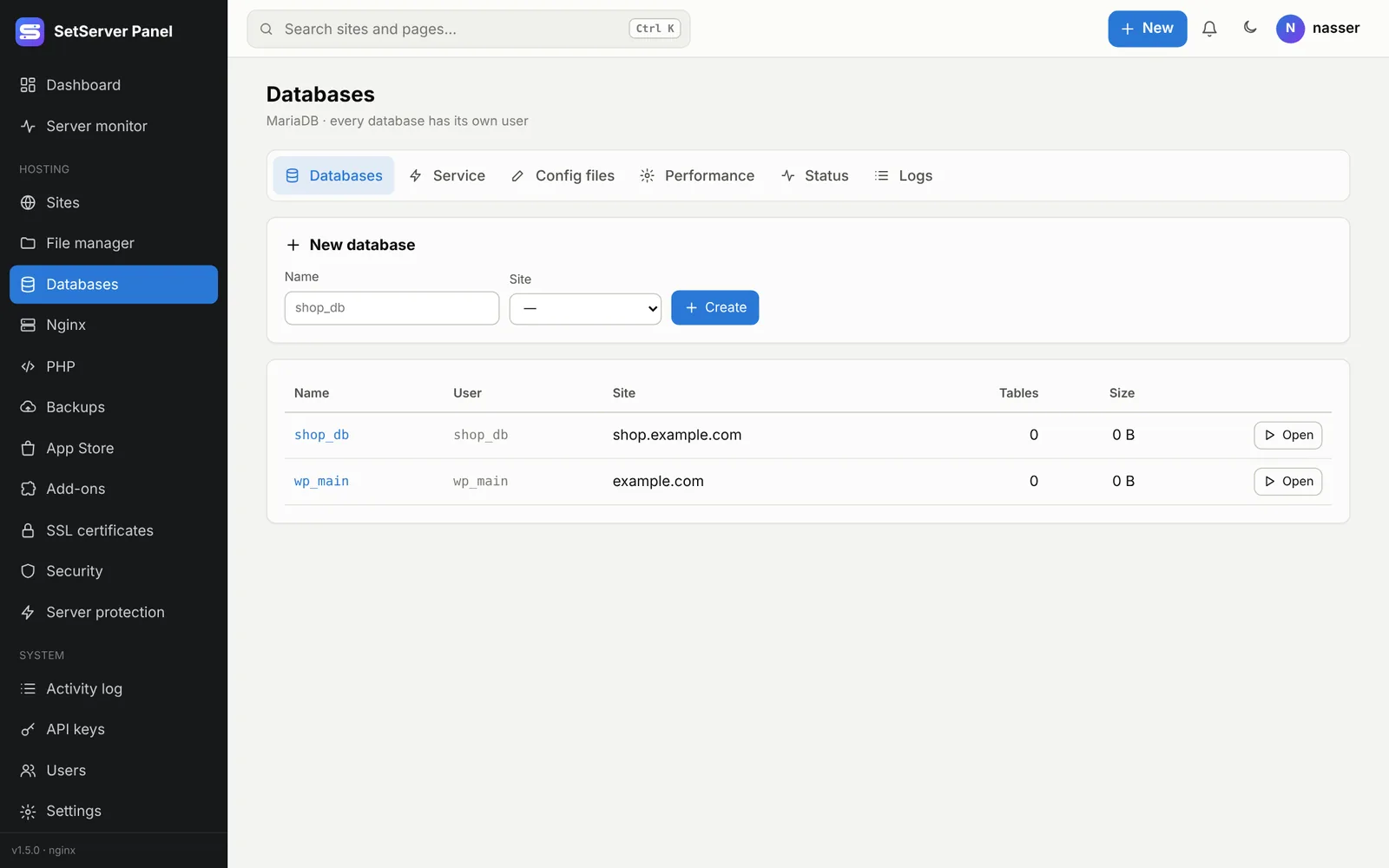
Create a database
- Open Databases (or + New → Database).
- Enter a Name: it starts with a letter and uses
a-z,0-9and_(3 to 32 characters). - Pick the Site it belongs to.
- Press Create. The password is shown once: copy it into your app's config (for WordPress,
wp-config.php).
Connect from your app with host localhost, the database name, its user and that password.
Manage a database
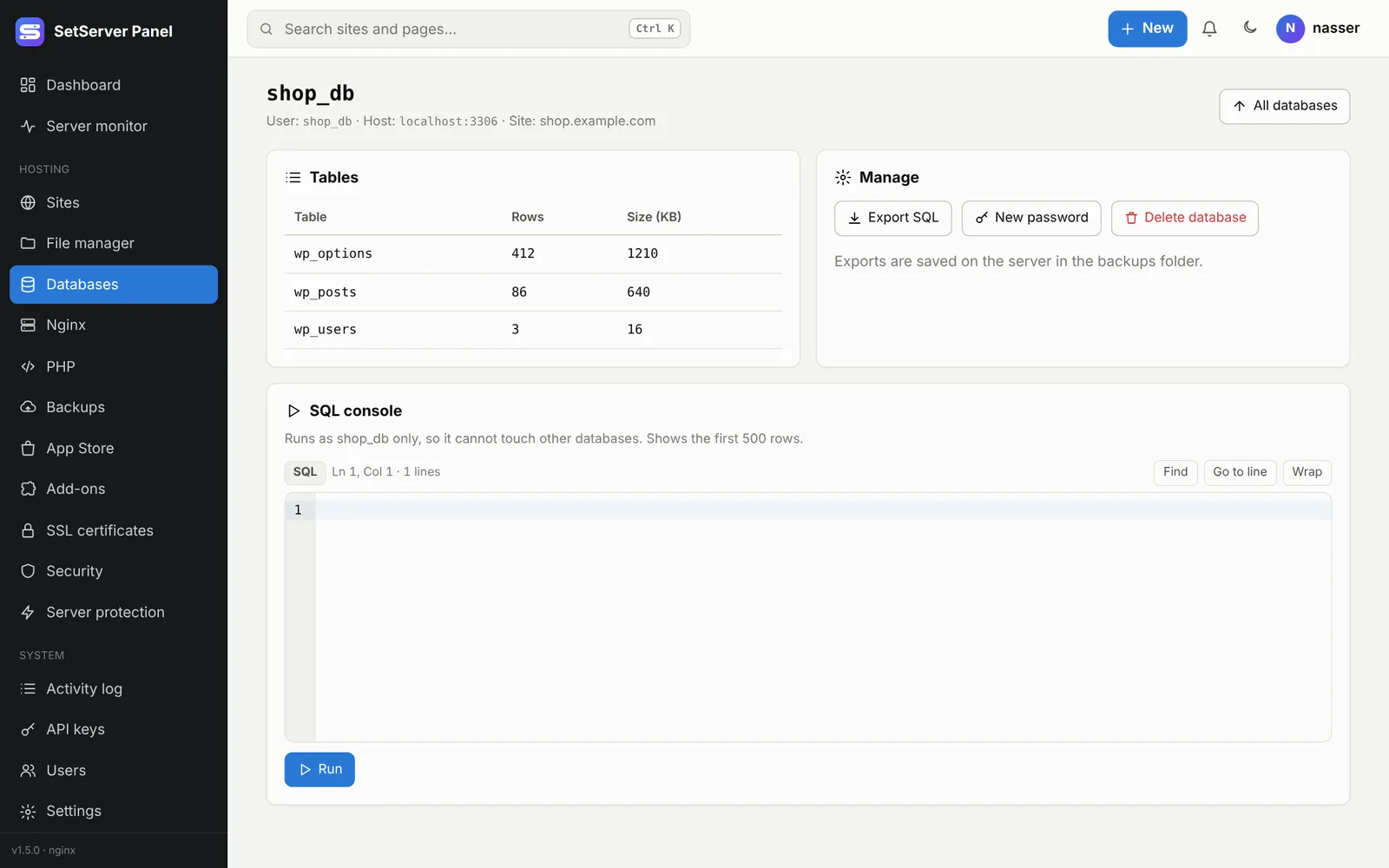
Click Manage to open a database:
- Tables with rows and size.
- SQL console: runs as the database's own user only, so it cannot touch other databases. Shows the first 500 rows.
- Export SQL: saves a dump in the server's backups folder.
- New password: apps that use the old one stop connecting until you update them.
- Delete database: type its name to confirm.
For a graphical tool, install Adminer into a site from the App Store.
The database server
Administrators see more tabs on the Databases page to run MariaDB itself:
| Tab | What it does |
|---|---|
| Service | Start, stop and restart. Start and restart check the config first. A Watchdog can start it again when it stops and alert you. |
| Config files | Edit the server's config in the code editor. Saving checks the file, tests it with the database server, then restarts. If anything fails, the old file comes back. A copy of every version is kept. Unsafe settings (running as root, plugins, skipping passwords, paths outside /etc/mysql) are refused. |
| Performance | Common settings such as the InnoDB buffer pool, max connections and the slow query log. Suggest for this server fills in values for the server's memory; most apply live without a restart. |
| Status | Live queries per second, connections, buffer pool hits, slow queries, and the open connections (you can end one). |
| Logs | View, filter and empty the logs; they rotate daily. |
Tuning
The most important setting is the InnoDB buffer pool: about a third of the RAM on a server that also runs sites.