
Sites
Each site has its own isolated Linux user and folder (/srv/sites/DOMAIN/). Visitors see the public_html folder unless you choose another one.
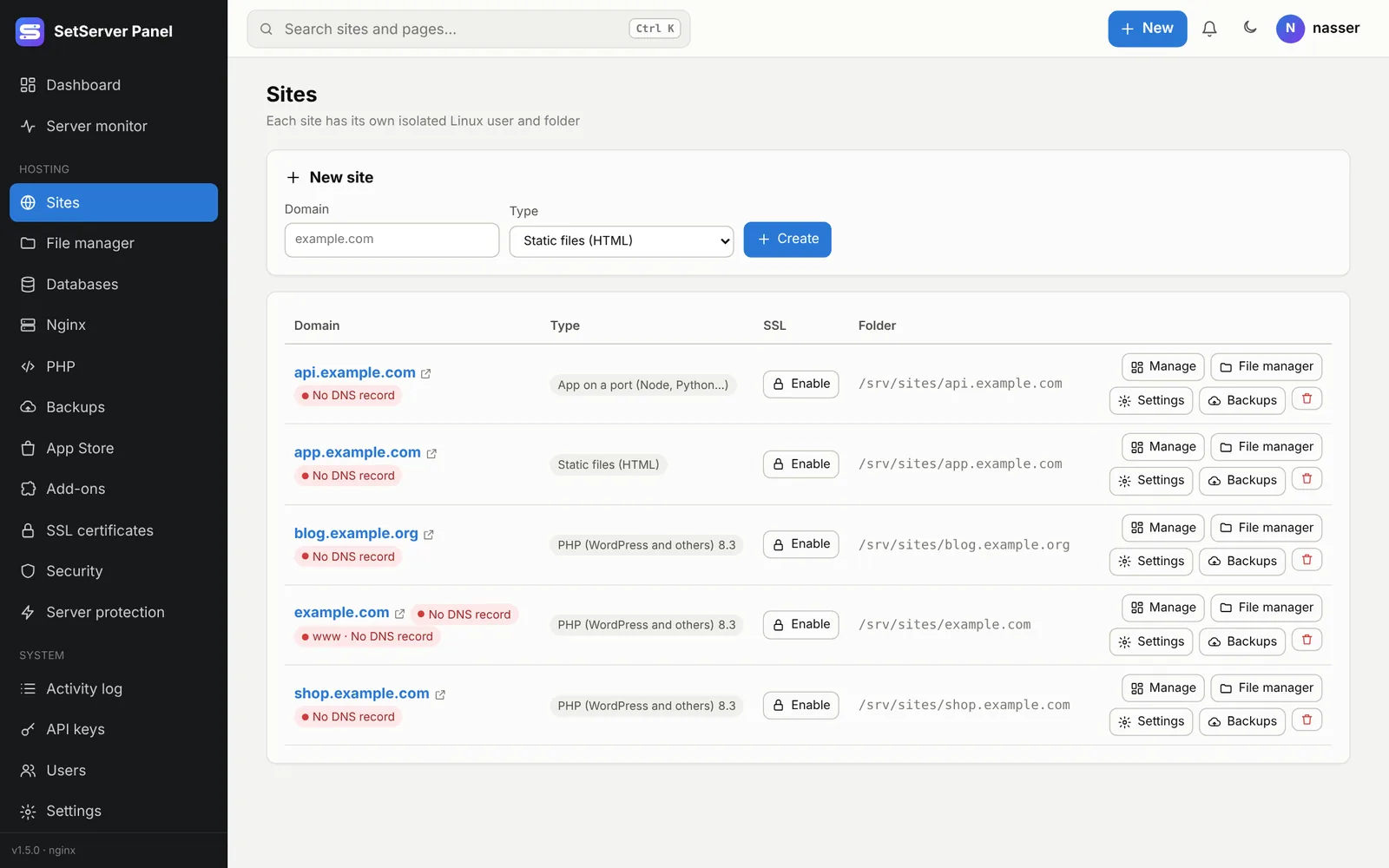
Create a site
- Open Sites (or + New → Site in the top bar).
- Enter the Domain, such as
example.comorshop.example.com. - Pick the Type (see below) and, for PHP, the PHP version.
- Press Create.
If SSL certificates → Get a certificate by itself for every new site is on, the site gets its Let's Encrypt certificate a few seconds later, as soon as its domain points to the server.
Point the domain first
Add an A record for the domain (and for www if it is a main domain) to your server's IP at your DNS provider. The DNS badge next to the domain turns green when it reaches this server.
Site types
| Type | Use it for | How it is served |
|---|---|---|
| PHP (WordPress and others) | WordPress, Laravel, any PHP app | A private PHP-FPM pool that runs as the site's user |
| Static files (HTML) | Plain HTML, CSS and JS | Files straight from the site folder |
| React / Vue app (built files) | A built single-page app | Files from the folder; every path that is not a file opens index.html. See React / Vue apps |
| App on a port (Node, Python…) | Node.js, Python, Go, any server | Requests are forwarded to a local port you choose (1024 or higher), WebSockets included |
You can change the type later on the site page. For App on a port, the panel warns when nothing is listening on that port, because visitors would get a 502 error.
The site page
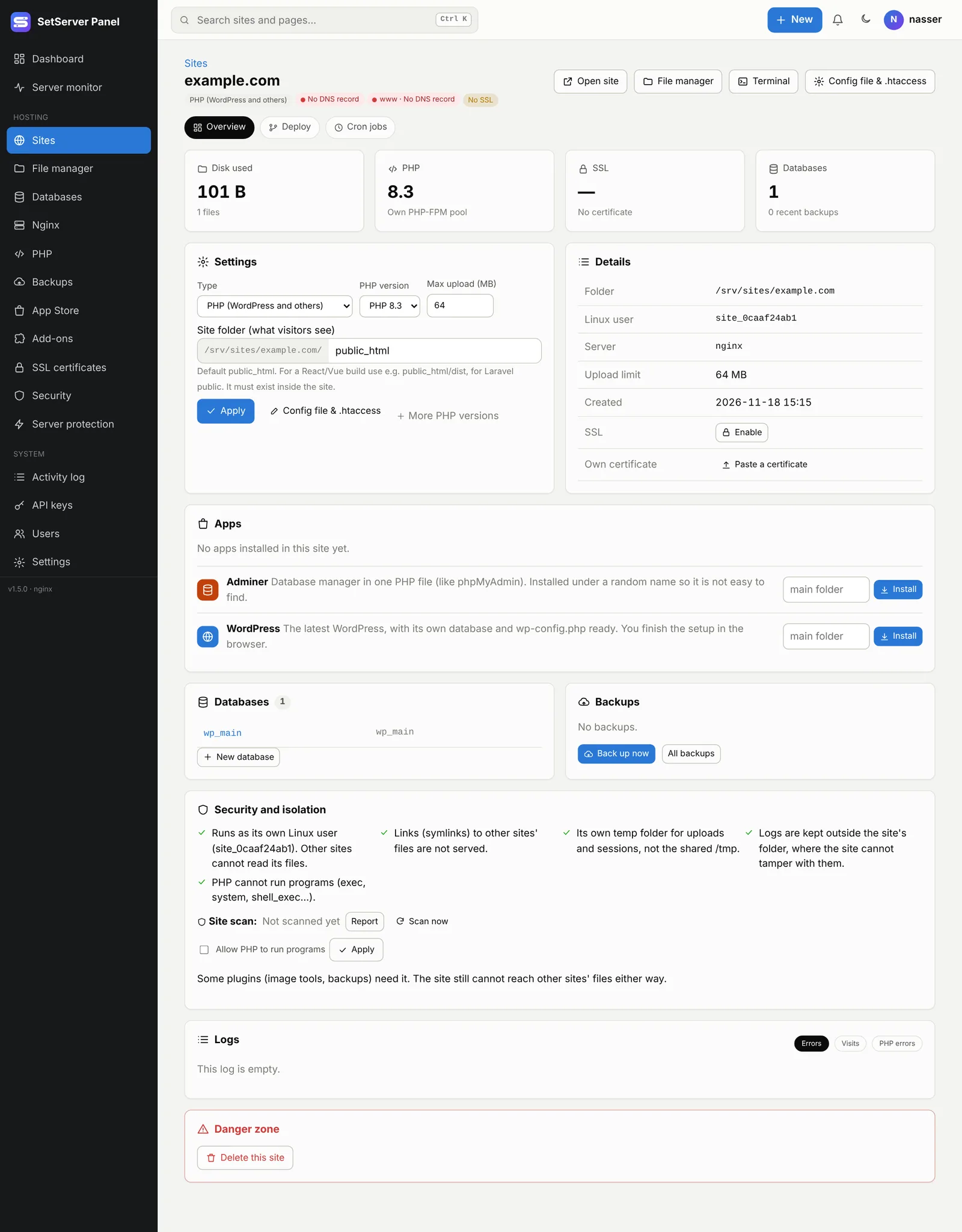
Click a site to open its page (/sites/ID). Everything about the site is in one place:
- Disk used, PHP, SSL and databases at the top.
- Settings: type, PHP version, max upload, and the Site folder (what visitors see).
- Details: folder, Linux user, web server, upload limit, SSL, and pasting your own certificate.
- Domains: the main domain,
www, and extra domains. 1.5.0 - Apps: WordPress or Adminer, installed in the site or in a sub-folder. See App Store.
- Databases and Backups of the site.
- Security and isolation: what protects the site, and the site scan.
- Logs: visits, errors and PHP errors.
- Buttons at the top: Open site, File manager, Terminal, and Config file & .htaccess.
- Tabs for add-ons: Deploy, Cron jobs, Email.
Site folder (root directory)
By default visitors see public_html. Change Site folder (what visitors see) to serve another folder inside the site:
| App | Site folder |
|---|---|
| WordPress, plain PHP | public_html |
| Laravel | public_html/public (or public if you deploy to the site root) |
| React / Vue build | public_html/dist or public_html/build |
The folder must already exist inside the site (create it in the file manager first) and must be a real folder, not a link.
Security and isolation
Every site:
- runs as its own Linux user, so other sites cannot read its files;
- has its own temp folder for uploads and sessions, not the shared
/tmp; - does not serve links (symlinks) to other sites' files;
- keeps its logs outside its folder, where the site cannot tamper with them;
- cannot run programs from PHP (
exec,system,shell_exec…) unless an admin ticks Allow PHP to run programs for that site.
Logs
The Logs card shows the end of the Visits, Errors and PHP errors logs. Logs are rotated every night and older copies are compressed. To change how long they are kept, see Nginx / Apache → Logs.
Delete a site
At the bottom of the site page, Danger zone → Delete this site. Type the domain and your password to confirm. Tick Also delete the site's files to remove its folder too; otherwise the files stay on the server. Databases owned by the site are listed so you can delete them separately.
Limits
Without a license the panel runs in free mode (1 site, 1 user). A license sets how many sites and users you can add. When a license ends, existing sites keep working; you just cannot add new ones. See Settings → License.