
SSL certificates
The SSL certificates page gets free Let's Encrypt certificates for every site and for the panel, and renews them by itself.
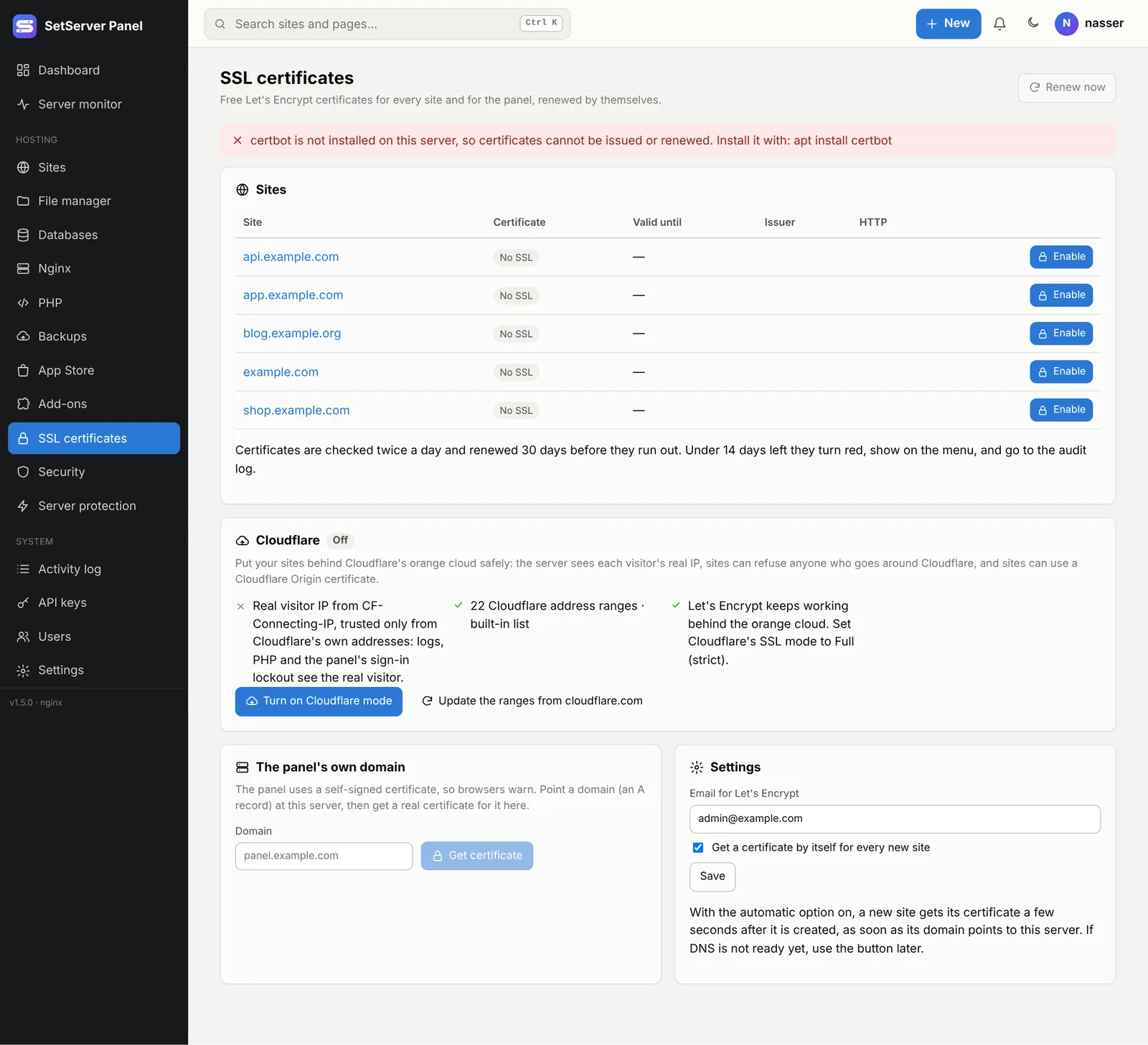
Set up once
- Enter the Email for Let's Encrypt. Let's Encrypt only writes to it if a certificate is about to run out and was not renewed.
- Turn on Get a certificate by itself for every new site. A new site then gets its certificate a few seconds after it is created, as soon as its domain points to this server.
Get a certificate for a site
The domain must already point to the server (an A record to its IP) and port 80 must be open. Then either:
- press Enable next to the site in the Sites table on the SSL page, or
- press Enable in the SSL row of the site's page.
For a main domain like example.com, www.example.com is included when its DNS also points here. For more domains on the same site, see Extra domains.
http and https
For each site choose Send http visitors to https (https only) or Serve both http and https.
Renewal
Certificates are checked twice a day and renewed 30 days before they run out. Under a few days left they turn red, show on the menu and in the bell, and go to the activity log. Renew now runs the renewal at once.
Your own certificate
On a site's page, Paste a certificate to use a certificate and private key you already have (PEM), such as a Cloudflare Origin certificate or one you bought. It is used instead of Let's Encrypt. The panel checks that the key matches, that the certificate is for that domain, and that it has not expired. Remove the pasted certificate goes back to Let's Encrypt (or plain http).
The panel's own certificate
The panel starts with a self-signed certificate, so browsers warn. To fix that:
- Point a domain at the server, such as
panel.example.com. - Under The panel's own domain, enter it and press Get certificate.
- Open the panel at
https://panel.example.com:8443.
Go back to the self-signed certificate undoes it. The self-signed certificate also includes the server's public IP, so tools like Claude Code can trust it when you use the IP address.
When it does not work
- "The domain must point to this server": check the DNS badge on the site; it must say DNS ok. New DNS records can take a few minutes.
- Port 80 closed: Let's Encrypt checks over http. Open port 80 in your provider's firewall and in Server protection.
- Behind Cloudflare: see Cloudflare.
- certbot is not installed:
sudo apt install certbot, or run Repair.