
Site scan and two-step sign-in
Site scan
Security watches every site for changed files, new files in the wrong place, and hidden malicious code.
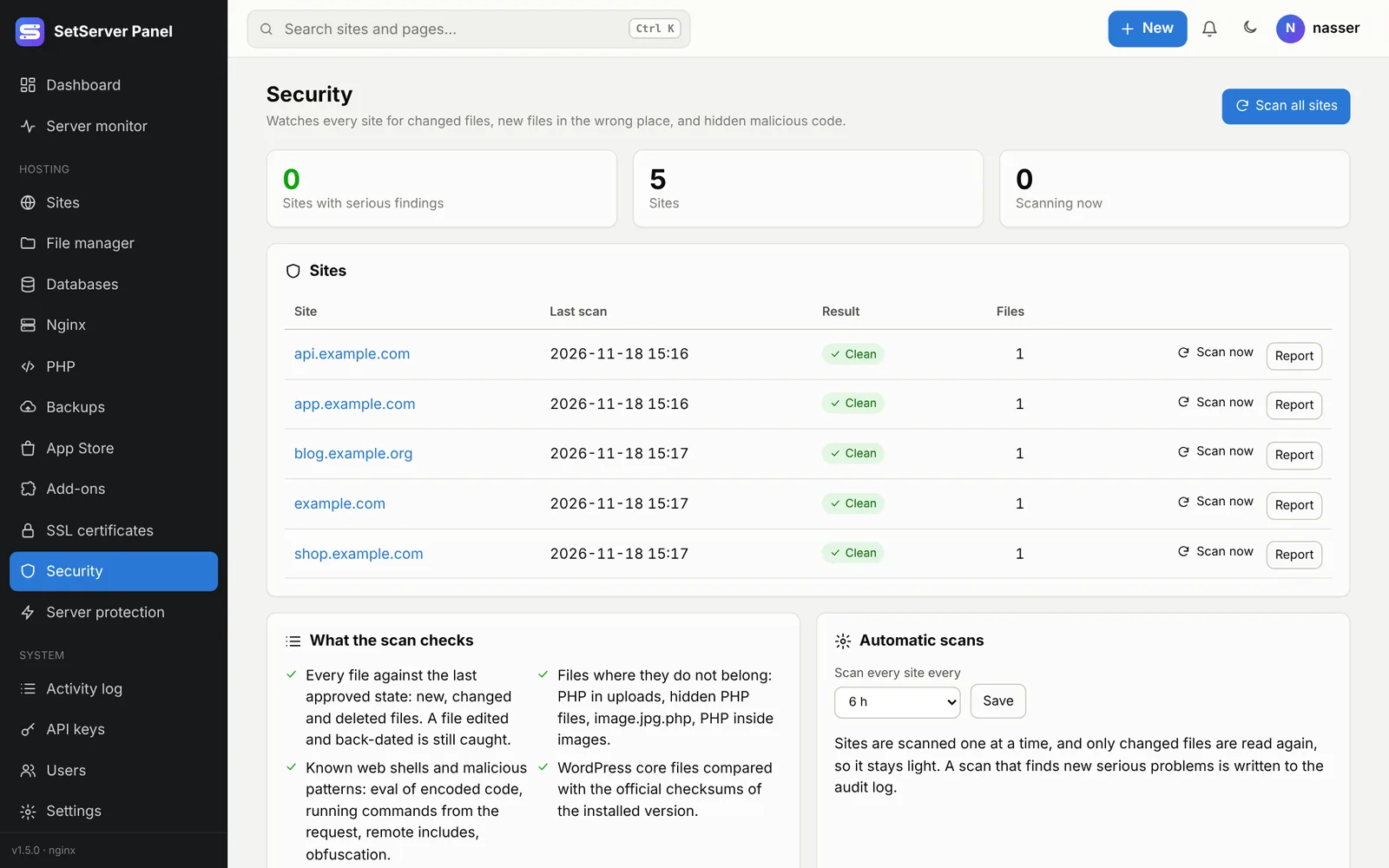
What the scan checks:
- Changes: every file against the last approved state: new, changed and deleted files. A file edited and back-dated is still caught.
- Malicious code: known web shells and patterns such as
evalof encoded code, running commands from the request, remote includes, obfuscation. - Wrong places: PHP in uploads folders, hidden PHP files,
image.jpg.php, PHP inside images. - Permissions and tricks: world-writable files, files owned by another user, links leading out of the site,
.htaccessand.user.initricks. - WordPress core: compared with the official checksums of the installed version.
The first scan records the current files as the approved state. Press Scan now on a site, or Scan all sites. Automatic scans run every few hours, one site at a time, reading only changed files.
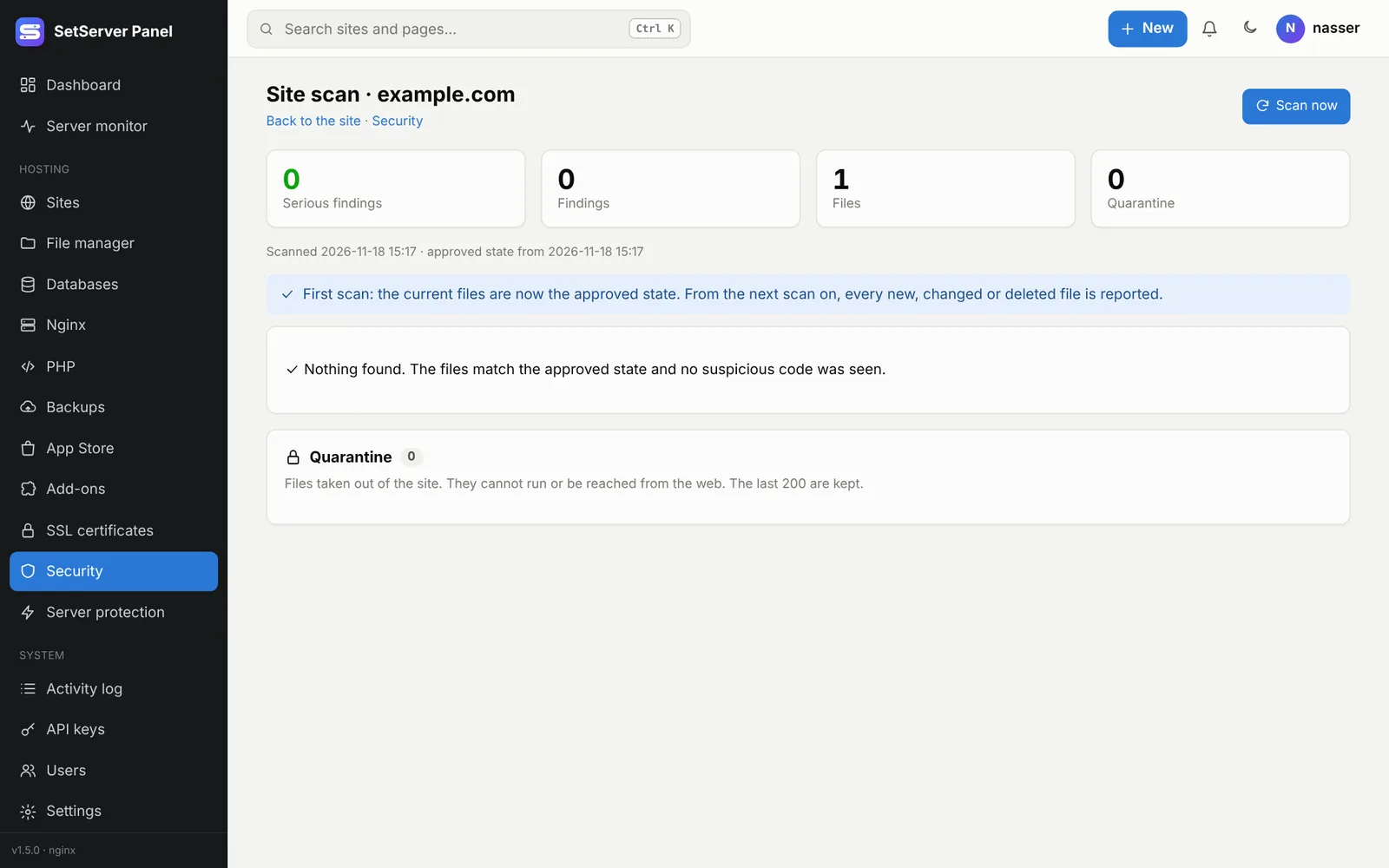
For each finding you can:
- Safe: you checked it and it is fine (reported again if the file changes);
- Quarantine: move the file out of the site to a locked folder only root can read; Restore puts it back;
- Open in the file manager;
- Approve changes: make the current files the new approved state (suspicious code stays reported).
Two-step sign-in
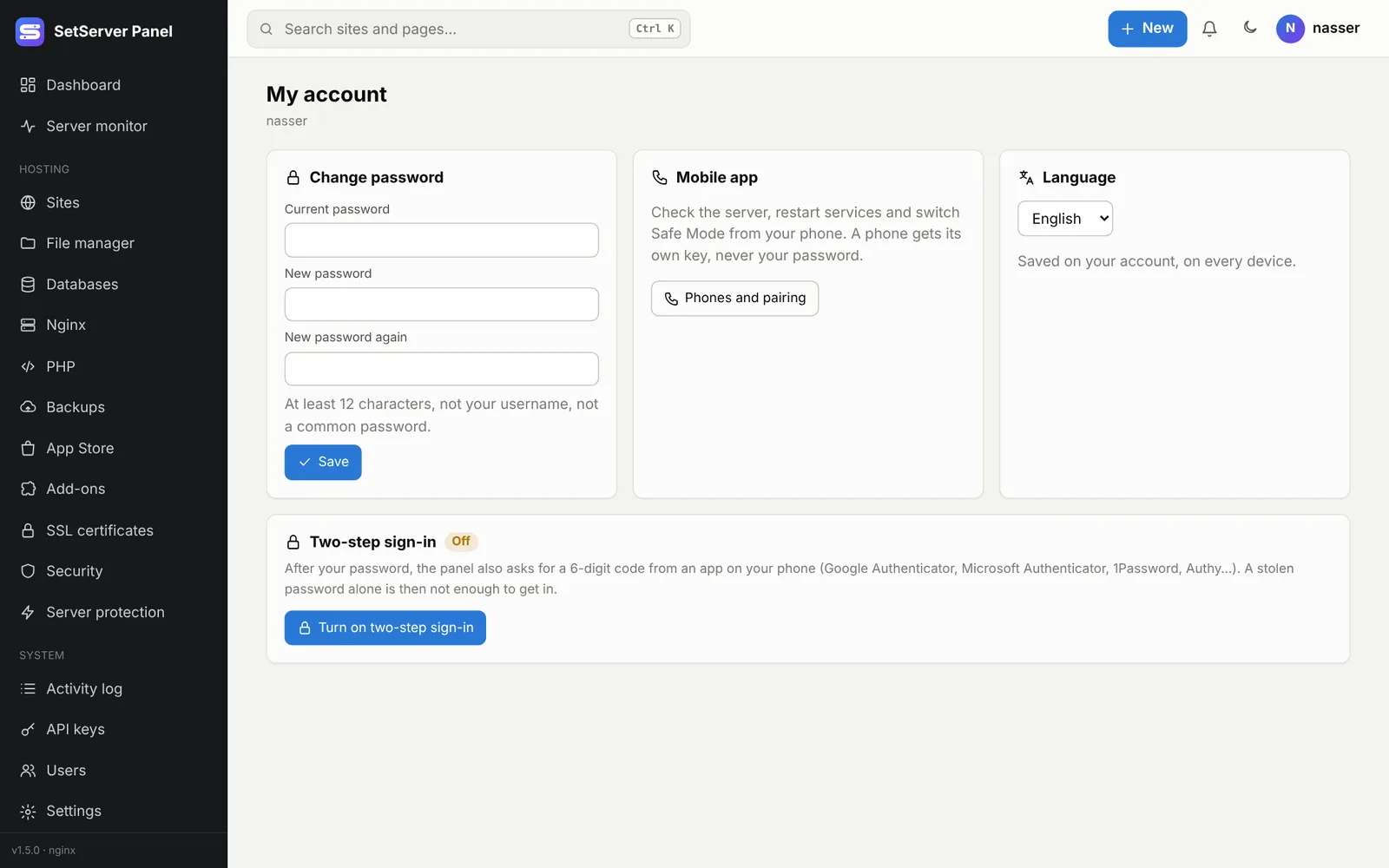
After your password, the panel also asks for a 6-digit code from an app on your phone (Google Authenticator, Microsoft Authenticator, 1Password, Authy…). A stolen password alone is then not enough.
- Open My account → Two-step sign-in and press Turn on two-step sign-in.
- Scan the QR code with the app (or type the key by hand).
- Type the 6-digit code and press Verify and turn on.
- Save the recovery codes somewhere safe, away from your phone. Each one signs you in once if the phone is lost. They are shown only once; New recovery codes makes a fresh set.
Lost your phone? At sign-in, type one of your recovery codes instead of the code. If you have none left, an administrator can Reset 2FA for you on the Users page, or on the server:
bash
sudo merp reset-2fa USERNAMEPasswords and sign-in
- Passwords are at least 12 characters, not your username, not a common password. They are stored with Argon2id.
- Too many failed sign-ins lock the account and the IP for a while.
- Changing your password signs out your other sessions and every paired phone.
- Settings → General → Stay signed in for sets how long a session lasts.