
Finding your way around
The menu
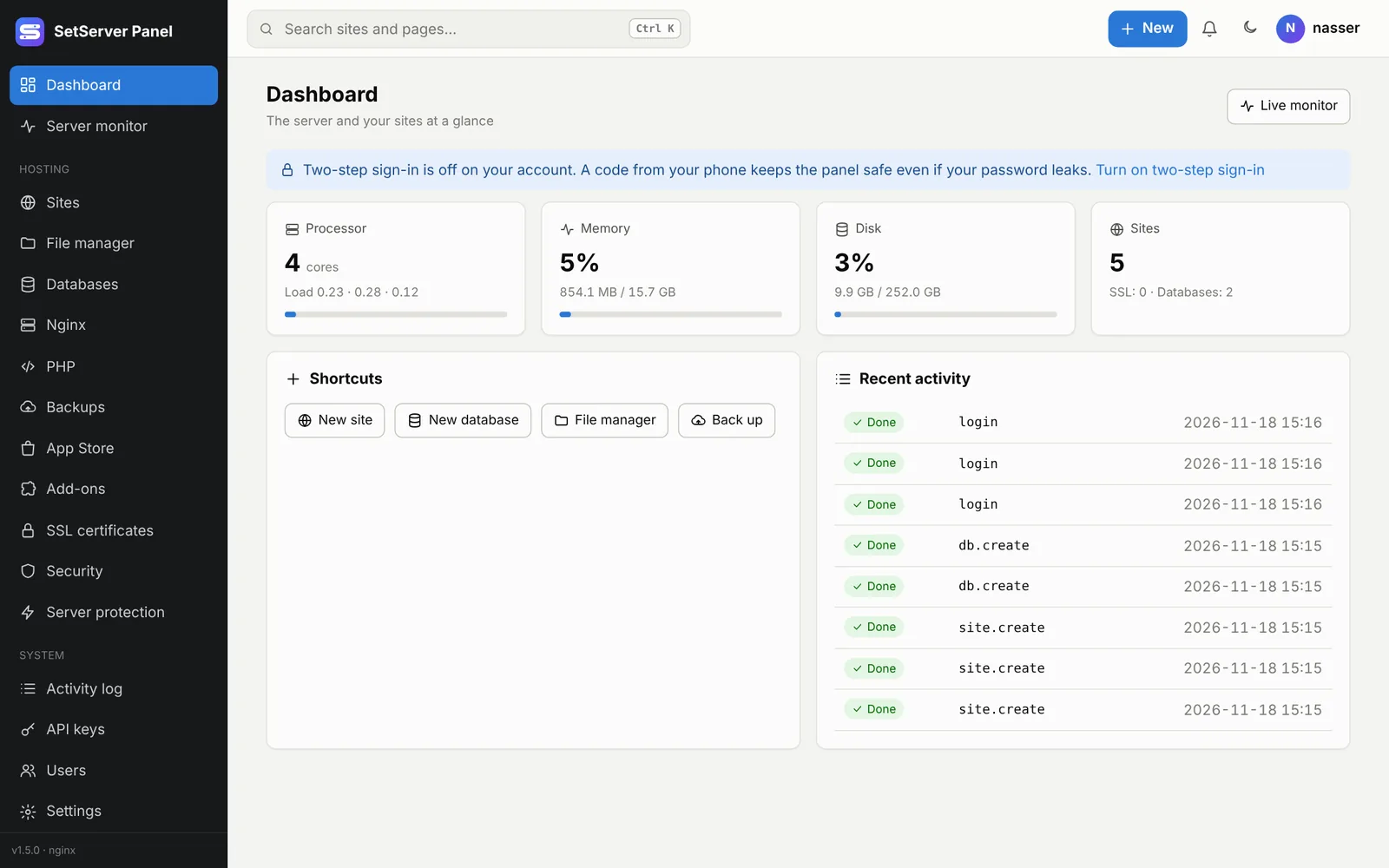
The menu on the side groups the pages:
- Dashboard and Server monitor
- Hosting: Sites, File manager, Databases, Nginx / Apache, PHP, Backups, App Store, Add-ons, SSL certificates, Security, Server protection, and the apps you installed (External sites, Vault, VoIP…)
- System: Activity log, API keys, Users, Settings
A red number next to a page means something there needs you, such as a certificate about to run out.
The top bar 1.5.0
Every page has a bar at the top with, from left to right:
- Search: type part of a domain or a page name. Press Ctrl+K (⌘+K on a Mac) from anywhere to jump to it.
- Running tasks: a spinning icon with a count while something is installing or updating.
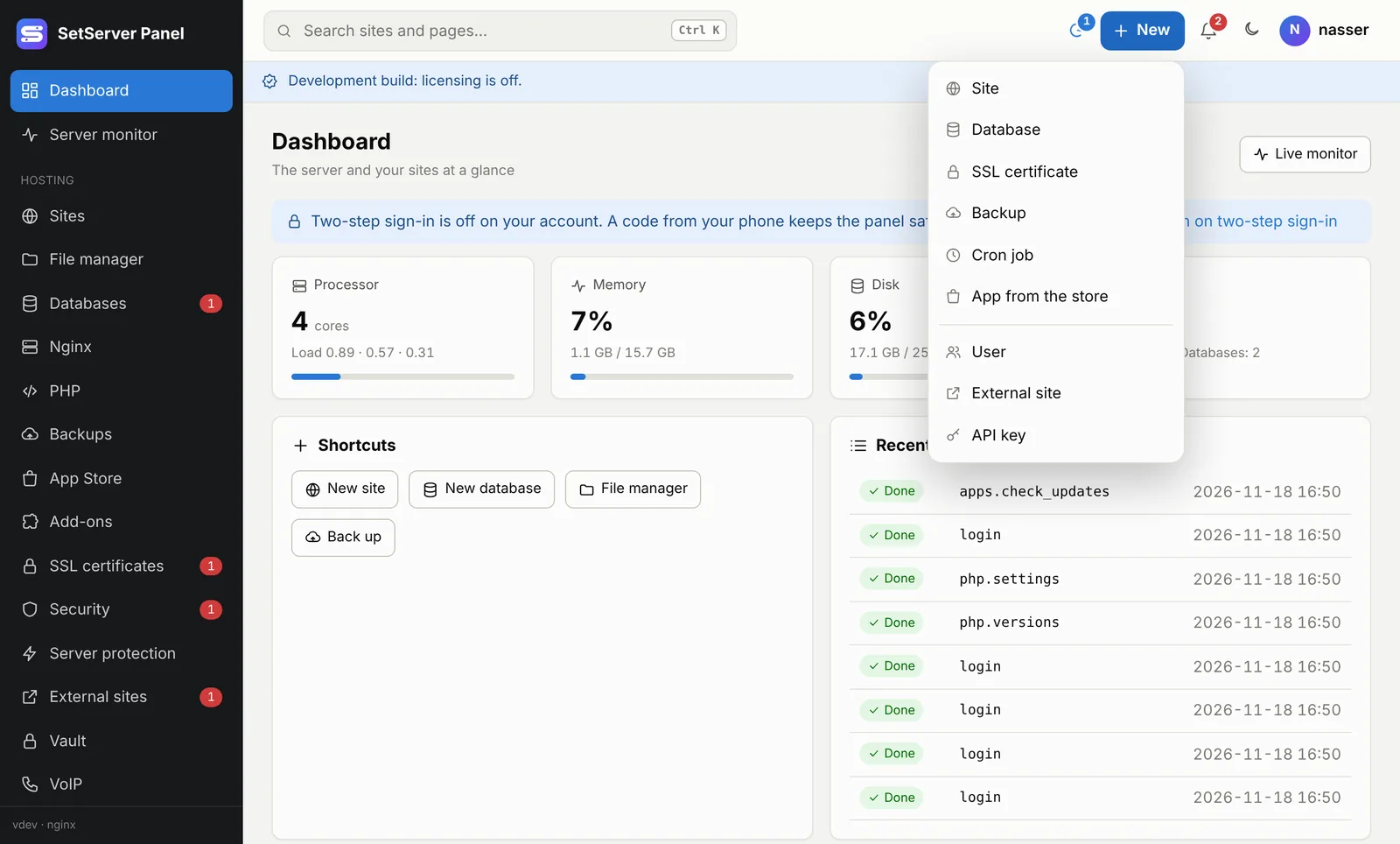
- + New: create a site, database, SSL certificate, backup, cron job, app, user, external site or API key. The form opens with the cursor ready.
- The bell: your notifications.
- Light or dark.
- Your account menu: language, theme, phones, API keys and sign out.
In Arabic the bar is mirrored, like the rest of the panel.
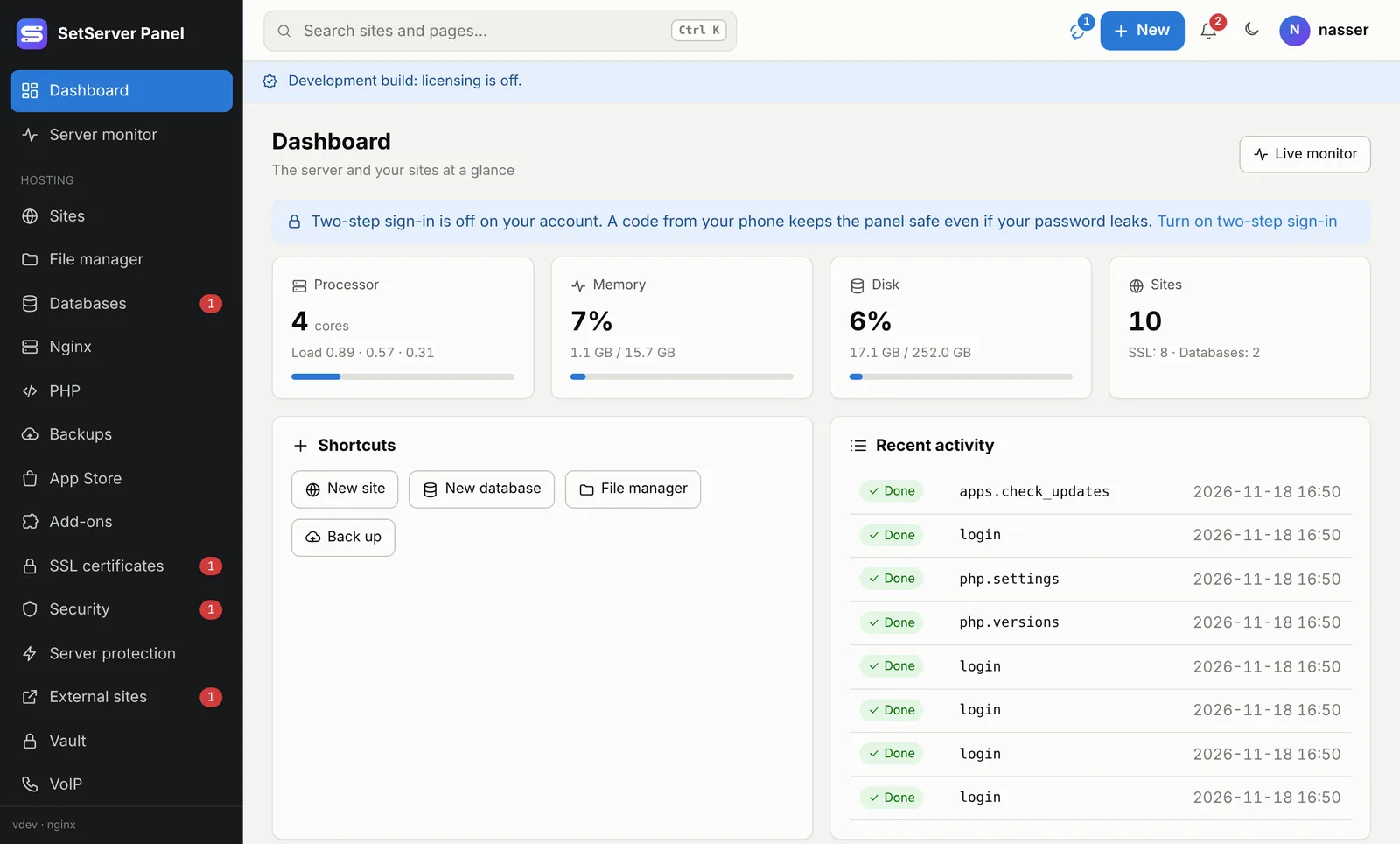
Running tasks 1.5.0
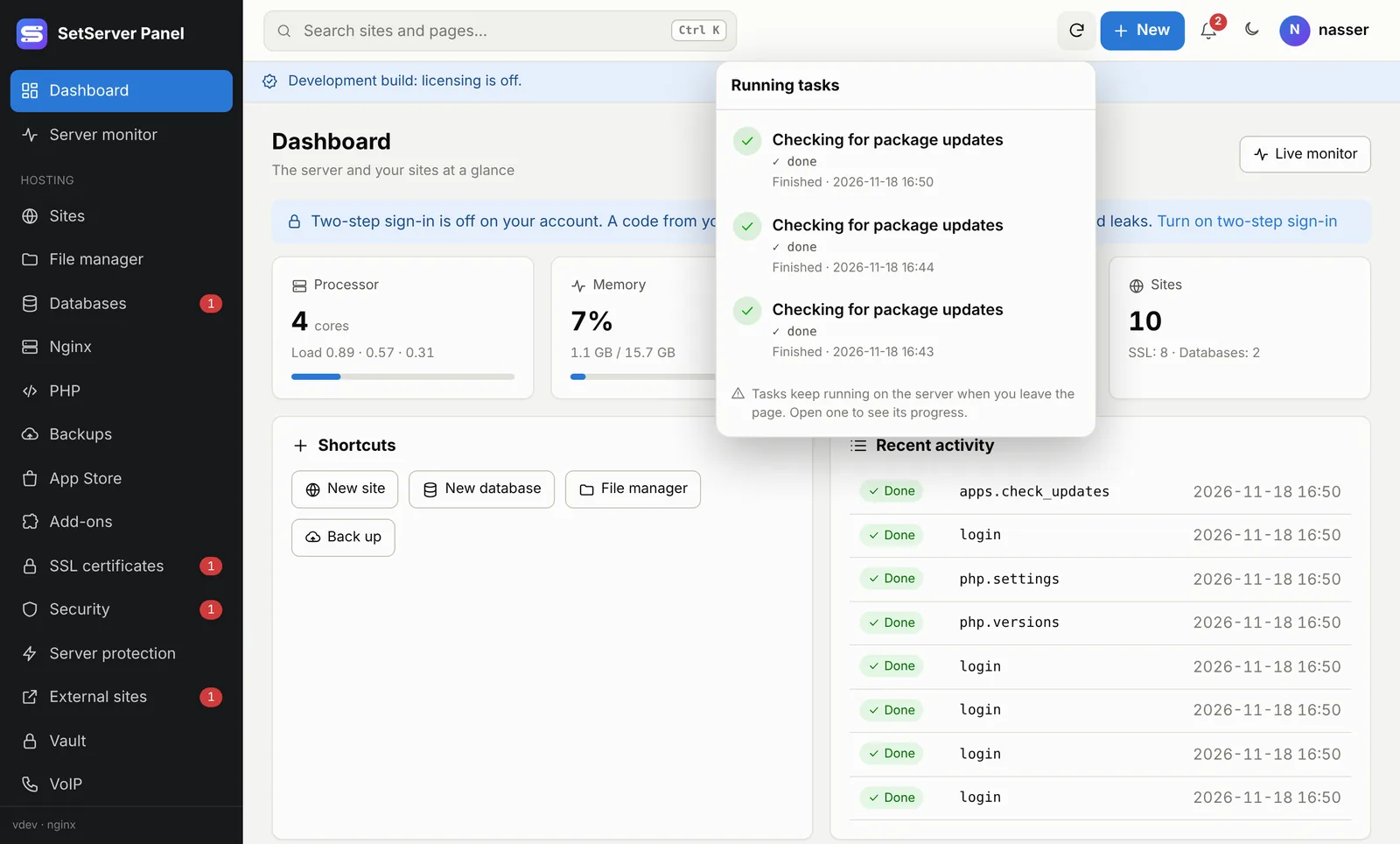
Installs and updates run on the server, not in your browser. You can leave the page and keep working. The running-tasks icon shows each task with the last line of its log. Click one to go back to its progress screen. When a task finishes or fails, a small message pops up and the result is added to the bell.
Notifications
The bell collects every alert in one place: stopped services, the license, panel and app updates, Safe Mode, security findings, certificates that run out soon, external sites that are down, and failed jobs. Each one links to its page. Use Mark all read to clear them.
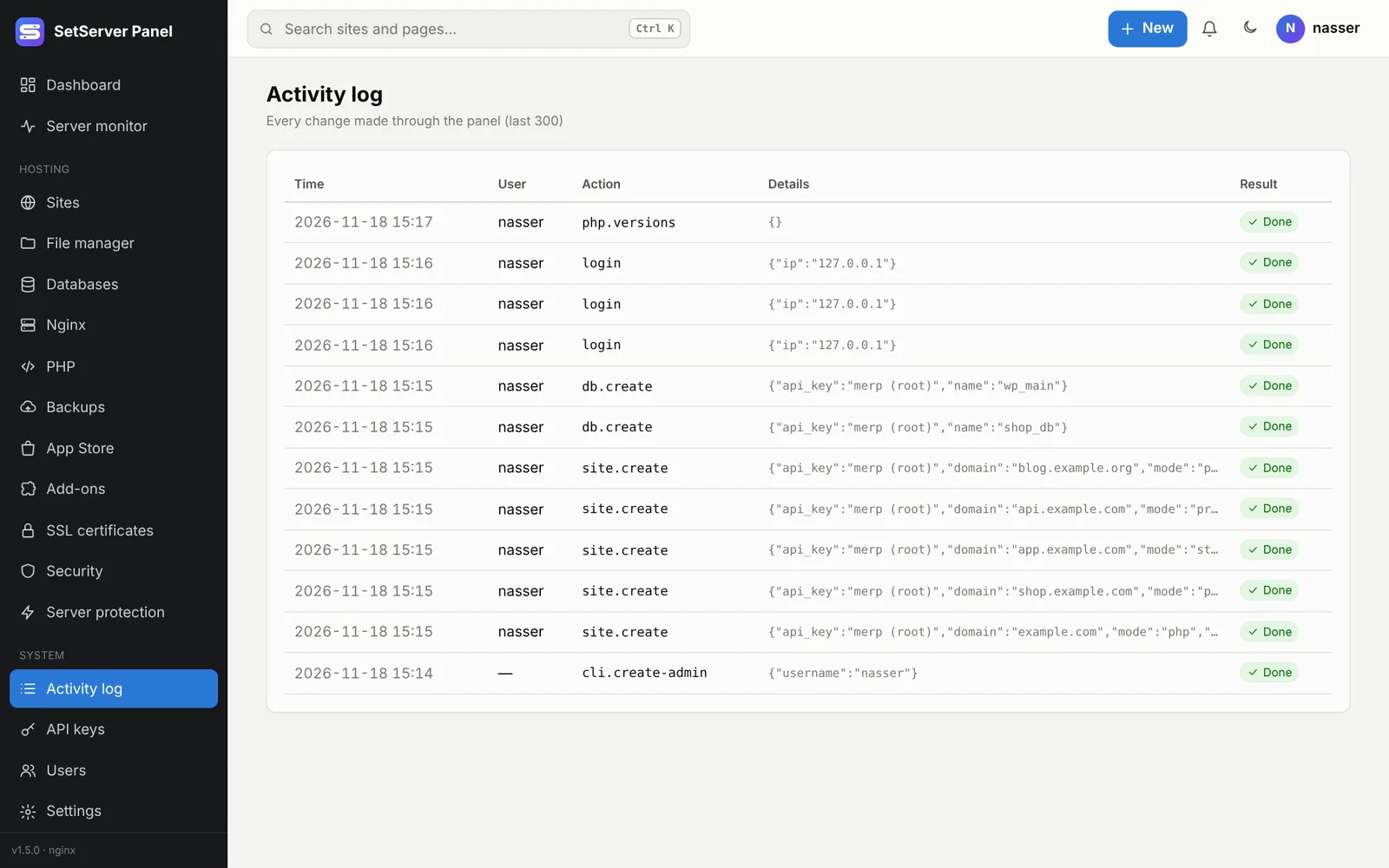
Activity log
Activity log lists every change made through the panel (the last 300): who did it, from where, what, and whether it worked. Changes made with an API key, the mobile app or the merp command show the key, phone or merp by name. Administrators see everyone's entries; other users see their own.
Language and theme
Each user picks a language (English, العربية, Español) and a theme (light, dark or follow the system) from the account menu. The choice is saved on the account, on every device. Arabic switches the whole panel to right-to-left.
Keyboard shortcuts
| Keys | Where | Does |
|---|---|---|
| Ctrl+K | Anywhere | Search sites and pages |
| Ctrl+S | Code editor | Save the file |
| Ctrl+F | Code editor | Find and replace |
| Ctrl+G | Code editor | Go to line |
| Esc | Menus and dialogs | Close |